Understanding the Inbox
Learn how replies are routed back into Tutonomi.
——— ••• ———
Your Inbox is where all your email conversations with pupils live. Every message you send appears here, and when a pupil replies, their reply lands in the same thread so everything stays in one place.
How it's organised
The left-hand panel shows a list of conversations, one per pupil. Each entry shows the pupil's name, a preview of the most recent message, and the date it was sent or received. Conversations with unread replies are flagged so you can see at a glance what needs your attention.
When you have replied, a 'replied' icon (looks like an arrow) is added to you can quickly see to whom you have and have not replied.
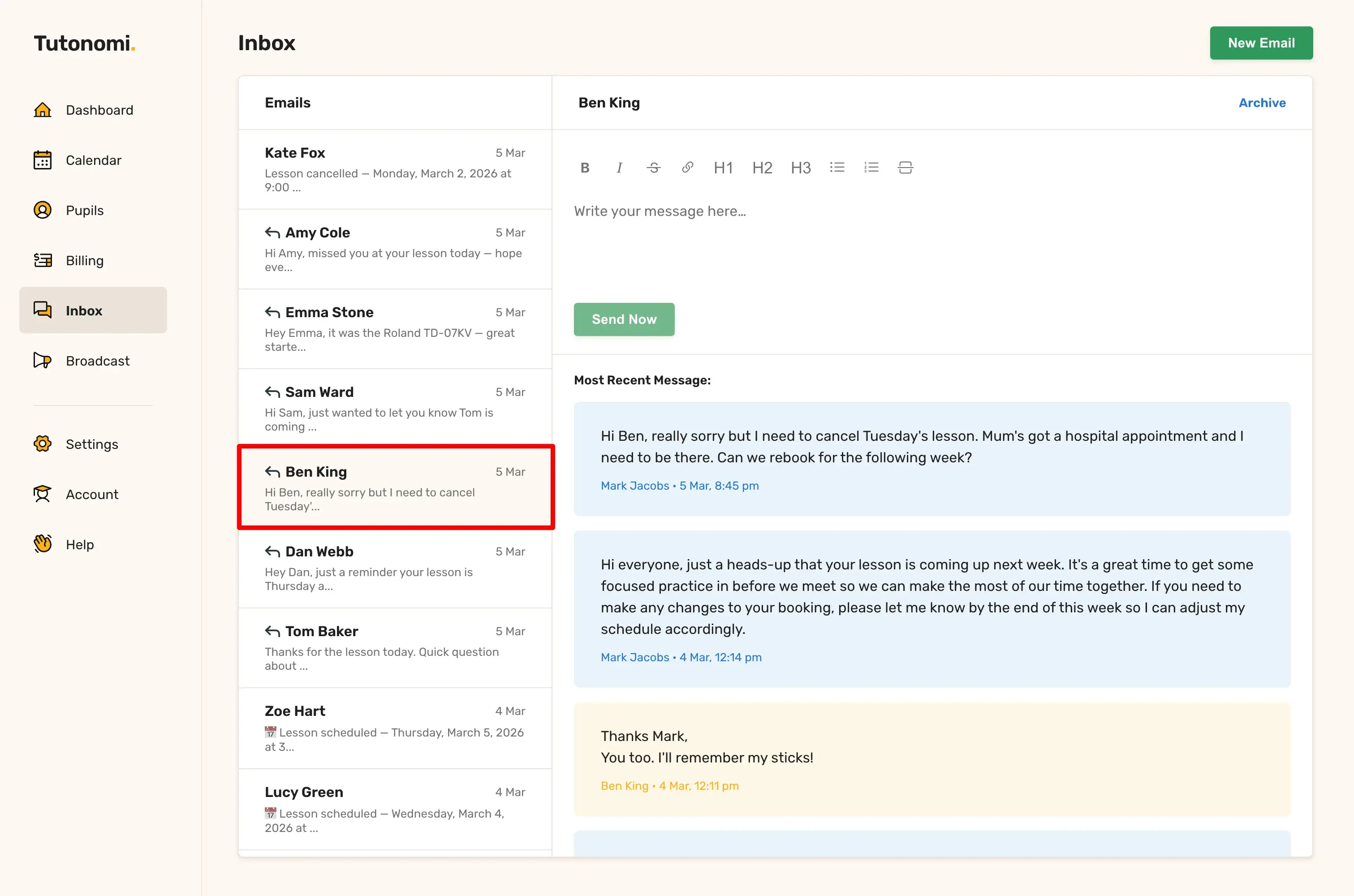
Clicking a conversation opens the full thread on the right, with messages displayed in order. Your messages appear in blue and pupil replies appear in a separate colour so the back-and-forth is easy to follow.
Sending a new message
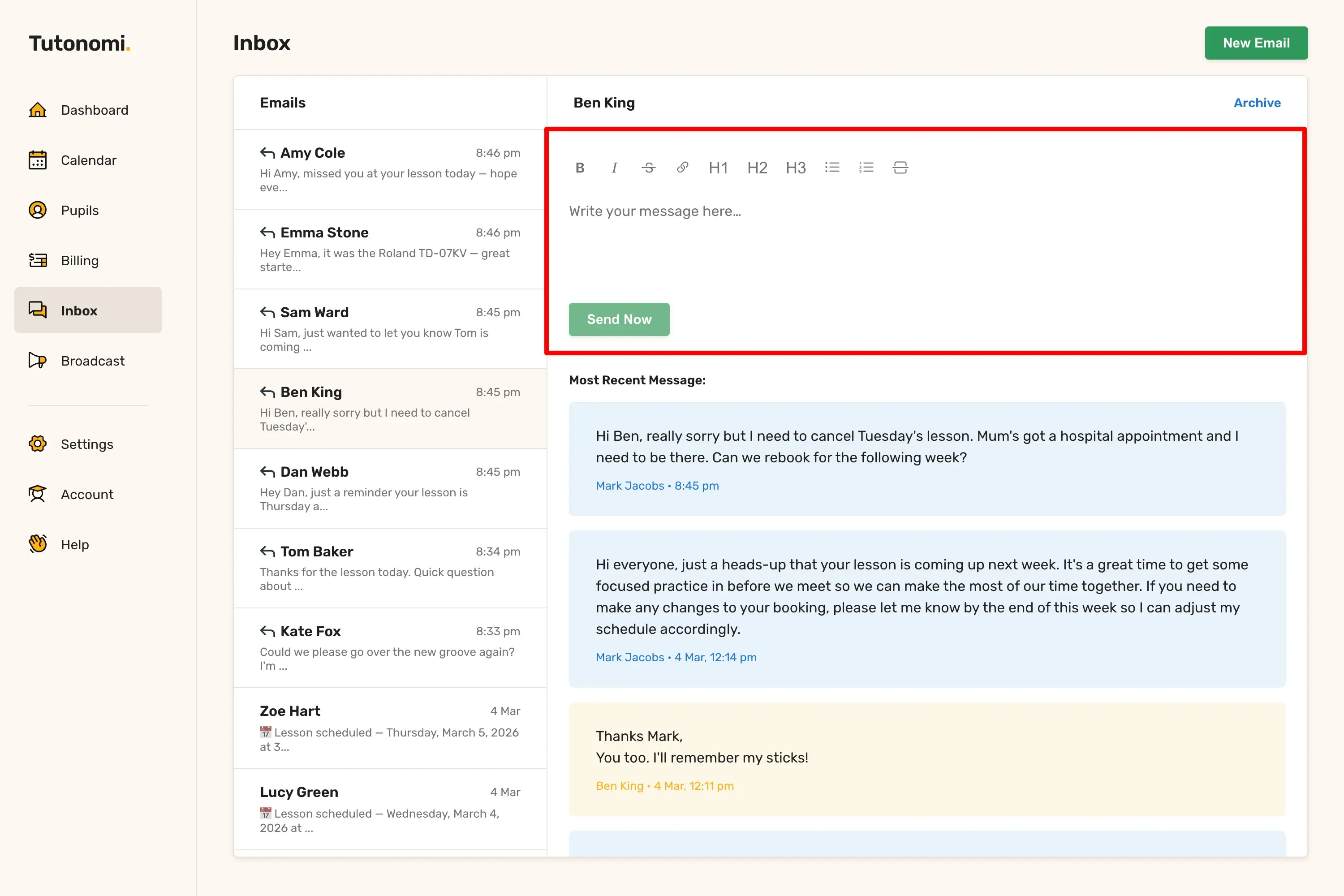
To start a new conversation, click New Email in the top right corner, select a pupil, and write your message. You can also email a pupil directly from their profile or from a lesson on the calendar.
Archiving conversations
Once a conversation is resolved or no longer relevant, you can click Archive to remove it from your main inbox view. Archived conversations are not deleted.
Good to know
Automatic messages sent by Tutonomi — such as lesson reminders and payment notifications — do not appear in your Inbox.
If a pupil replies to an automatic notification email, that reply will land in your Inbox as a new conversation.
Need a hand? 👋
If this hasn’t fully answered your question, we’re always here to help!
Send us a message and we’ll get back to you quickly — usually within an hour (9am-6pm UTC).
I simply love it
Saves me 5 hours a week
It’s free!
I have more family time now
My schedule is crystal clear
I spend more time earning (or relaxing!)
Now I get paid on time, every time
I highly recommend this app!