Reschedule a Lesson
Quickly move a lesson to a new date without disrupting payment tracking.
——— ••• ———
Here's how to move a lesson to a different date or time.
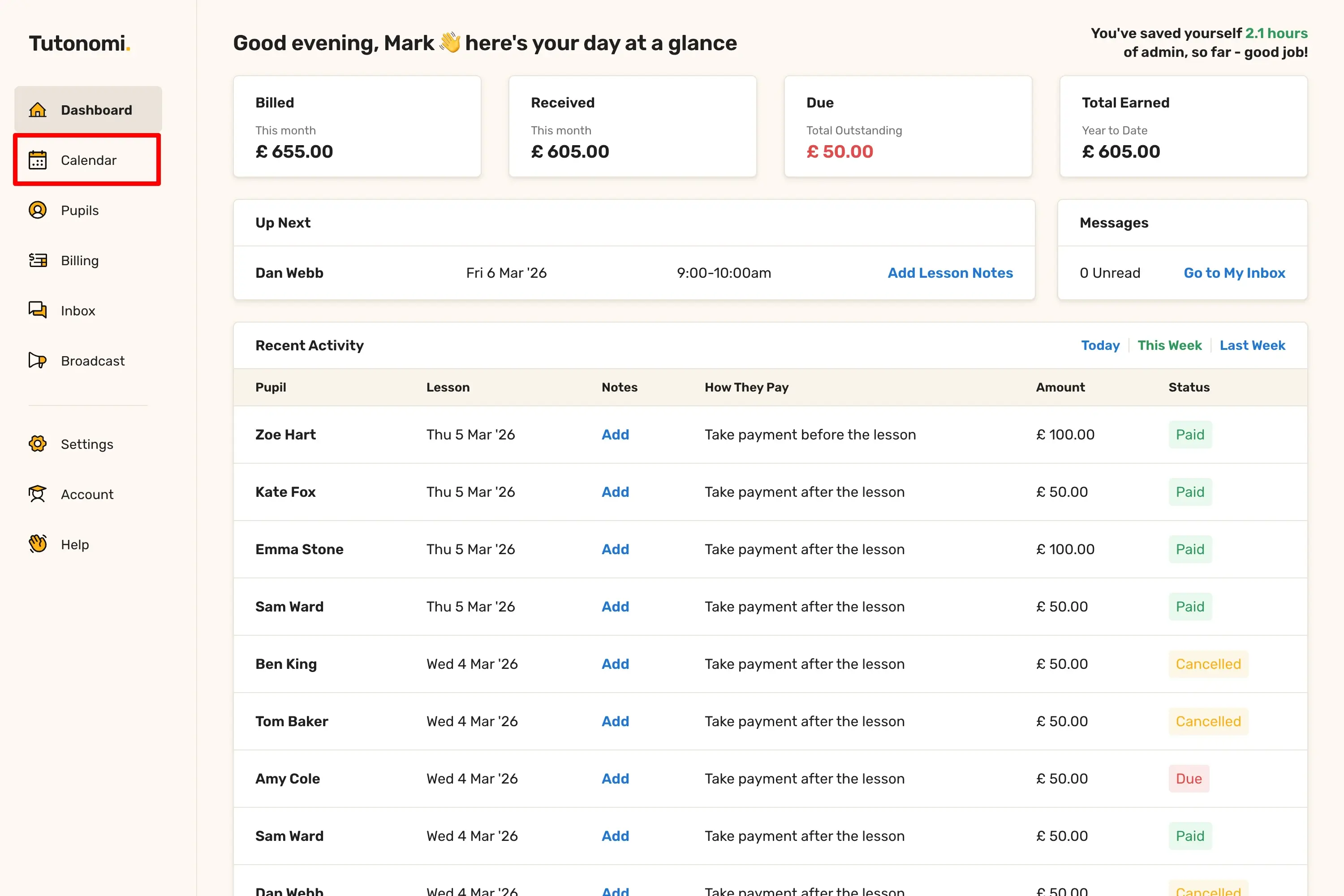
Step 1: Open your Calendar
From the left-hand menu, click Calendar.
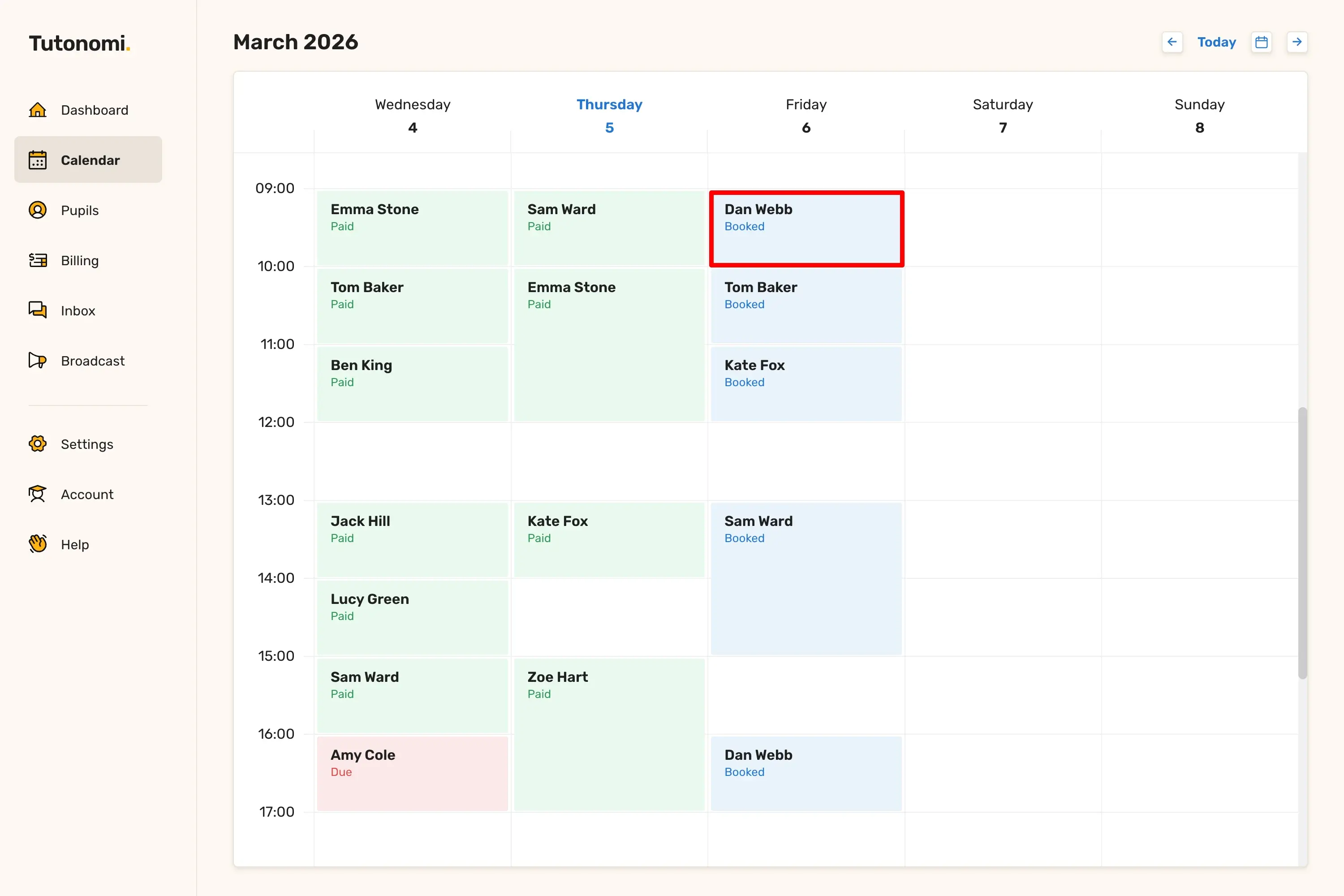
Step 2: Open the lesson
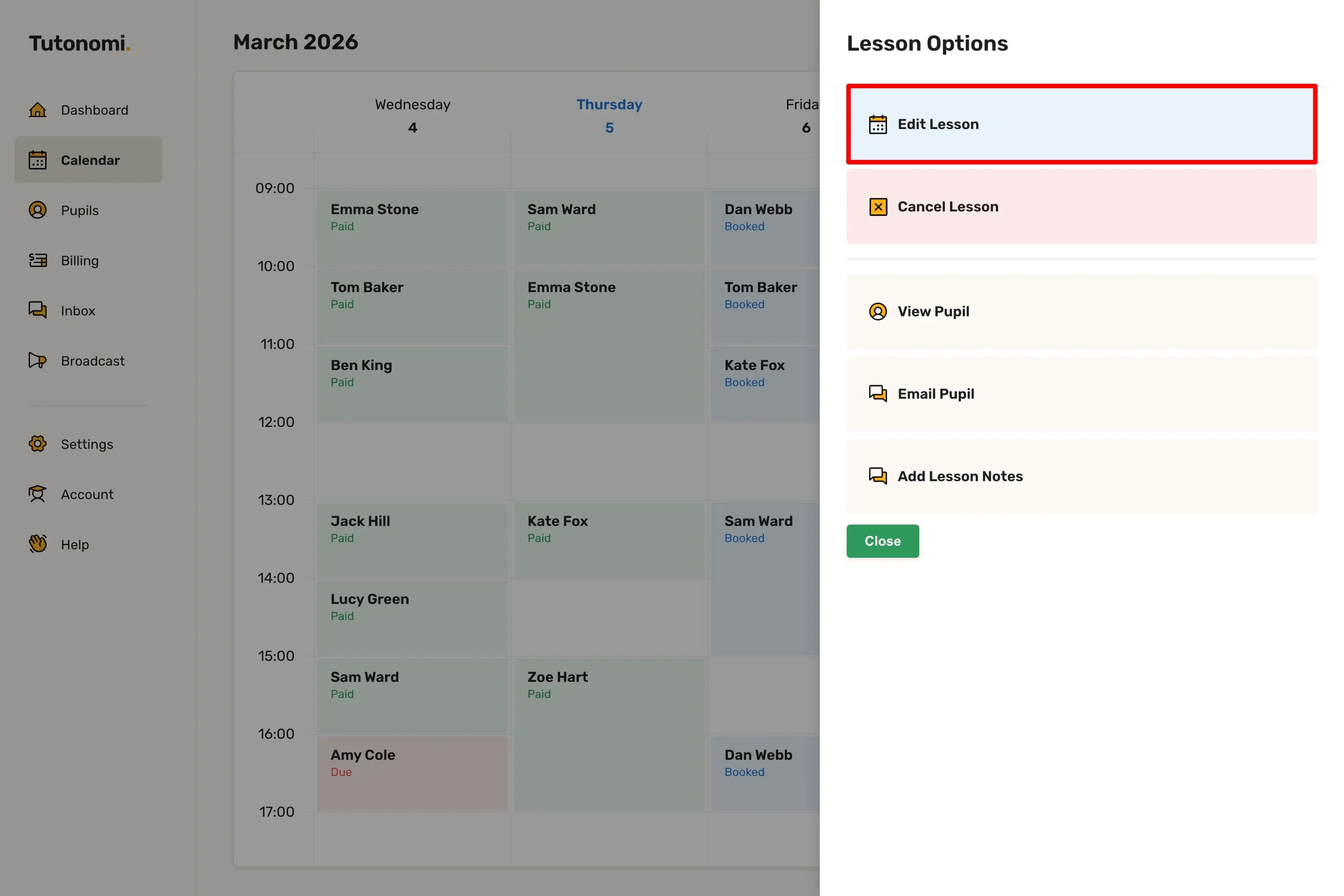
Click on the lesson you want to reschedule. In the Lesson Options panel, select Edit Lesson.
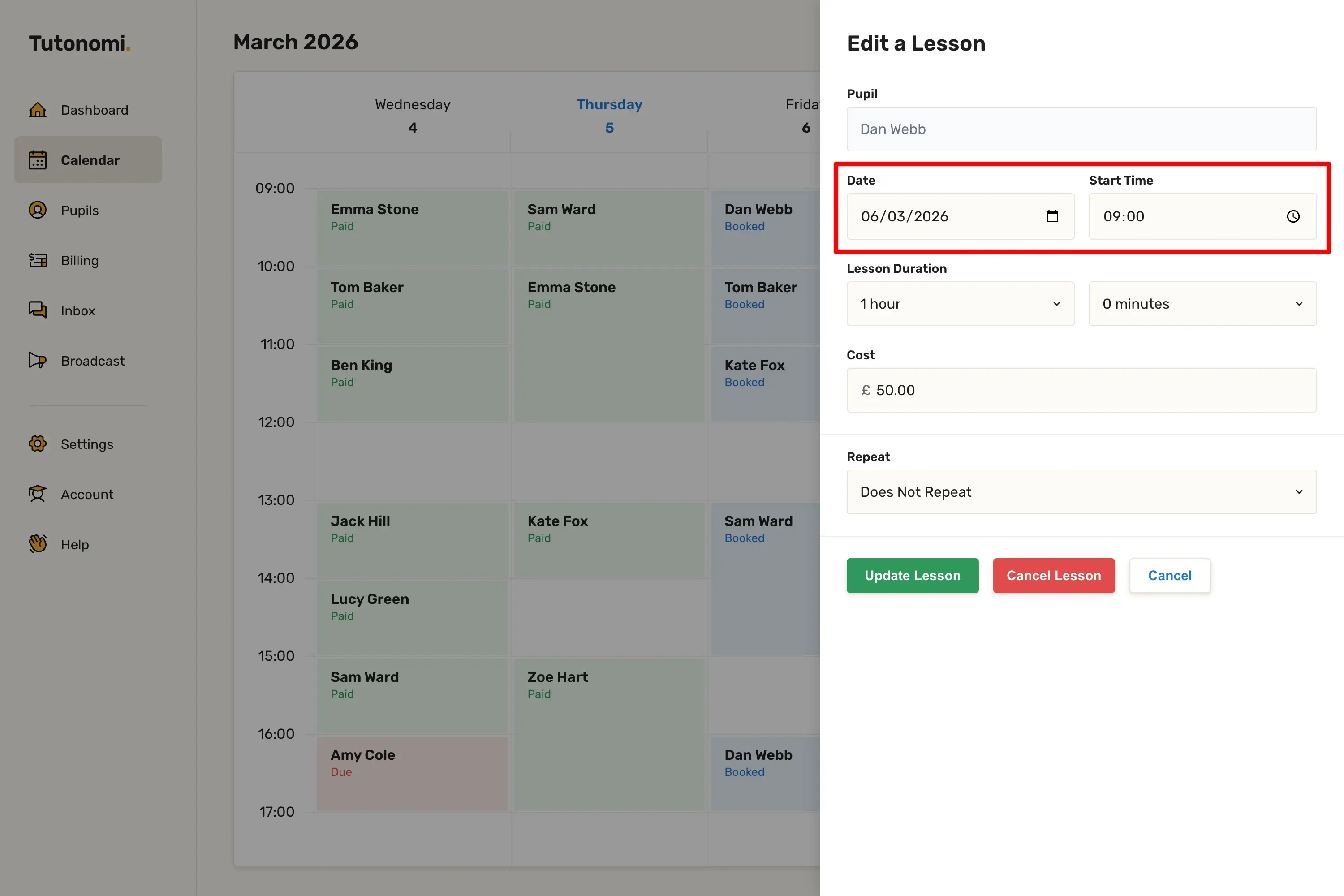
Step 3: Change the date or time
Update the Date and/or Start Time fields to the new slot you want.
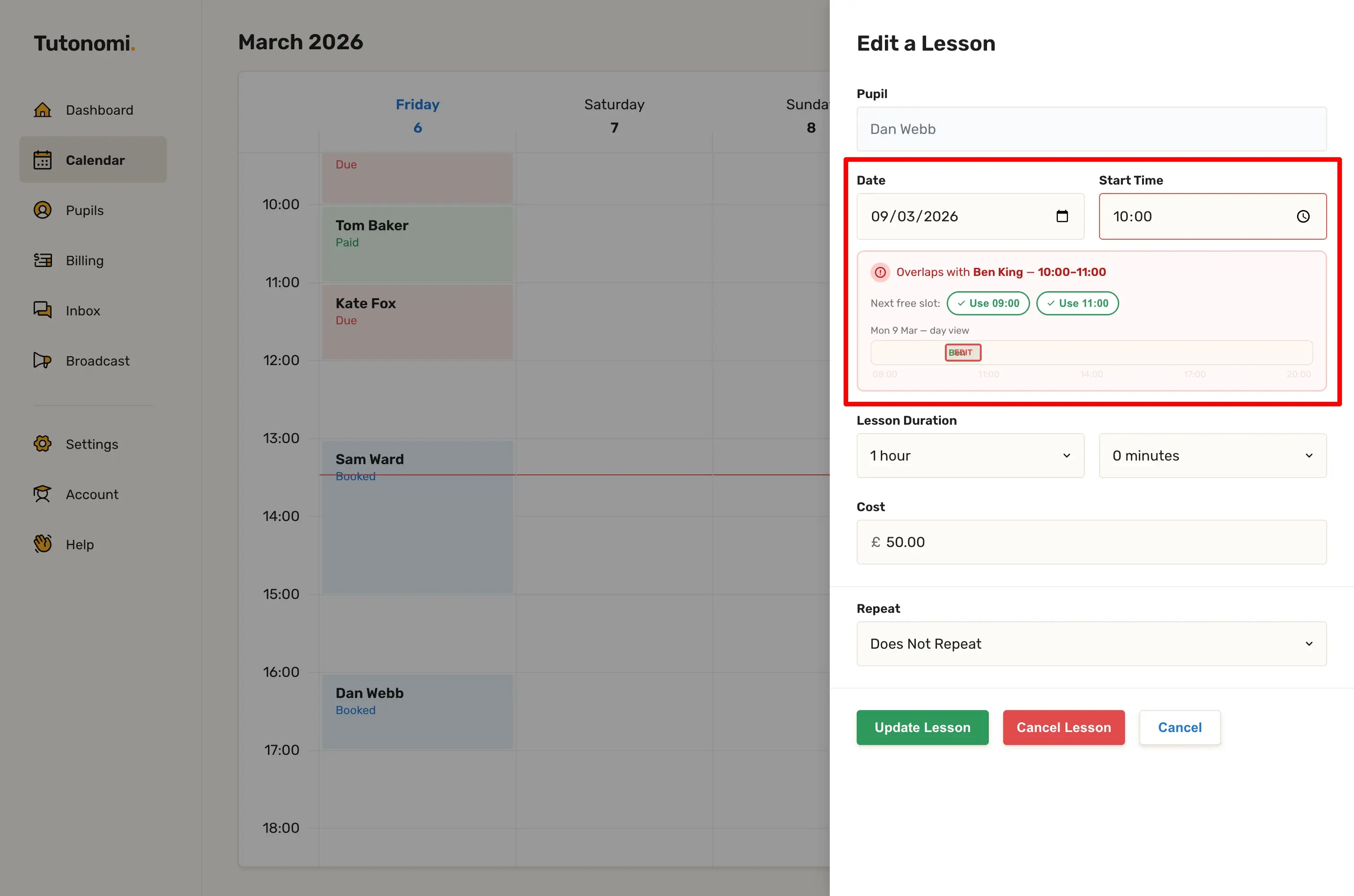
Step 4: Check for clashes
If the new time overlaps with another lesson, Tutonomi will flag it and show you a mini view of the day. You can either adjust the time manually or use the Use 09:00 / Use 11:00 suggestions to jump straight to the nearest free slot.
Step 5: Save
Once you're happy with the new time, click Update Lesson.
Good to know
Rescheduling does notify the pupil automatically.
The clash warning shows the conflicting pupil's name and time, so it's easy to see what needs to move.
Need a hand? 👋
If this hasn’t fully answered your question, we’re always here to help!
Send us a message and we’ll get back to you quickly — usually within an hour (9am-6pm UTC).
I simply love it
Saves me 5 hours a week
It’s free!
I have more family time now
My schedule is crystal clear
I spend more time earning (or relaxing!)
Now I get paid on time, every time
I highly recommend this app!