Add Lesson Notes
Record notes for completed lessons for your own reference.
——— ••• ———
Here's how to write and send notes to a pupil after a lesson.
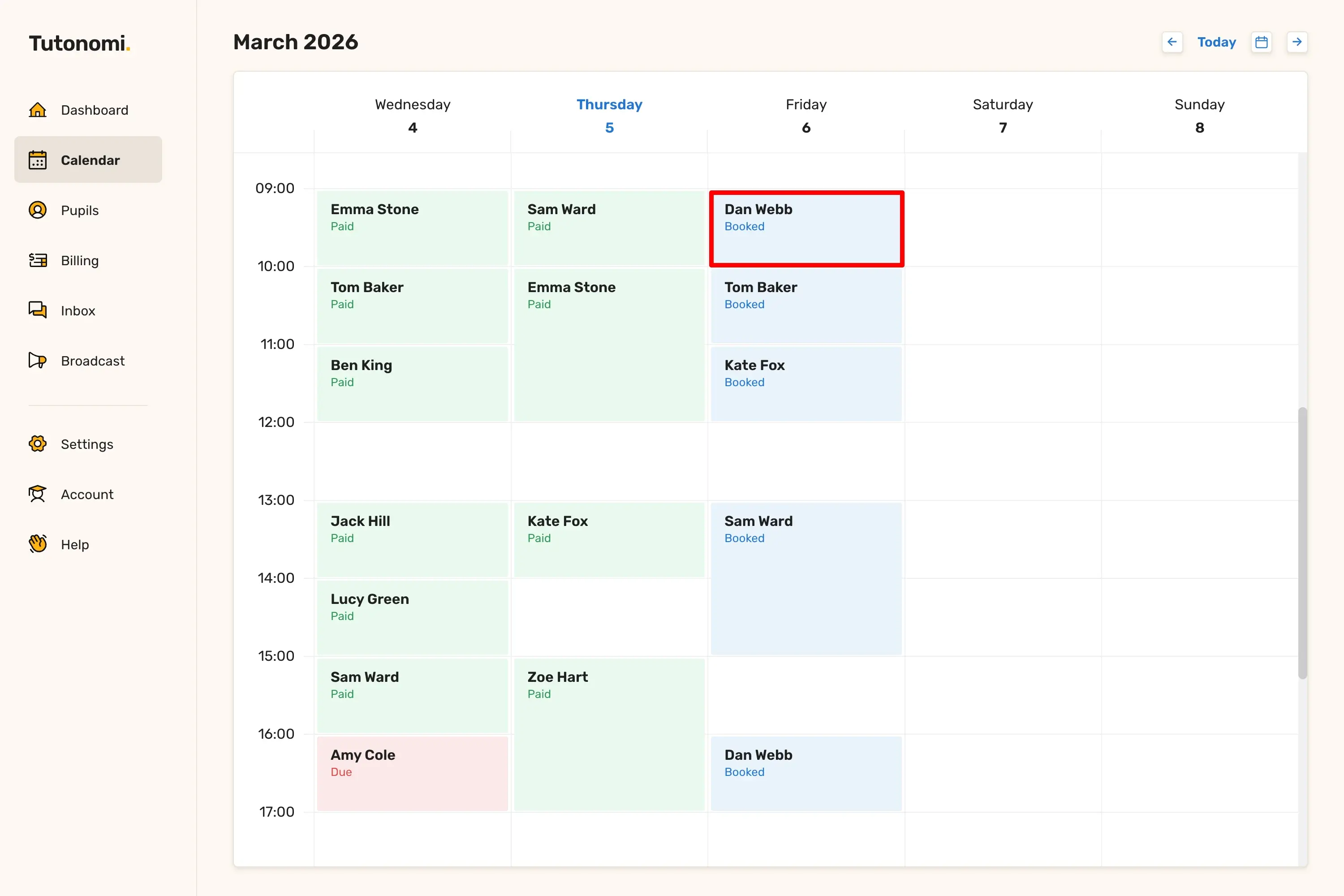
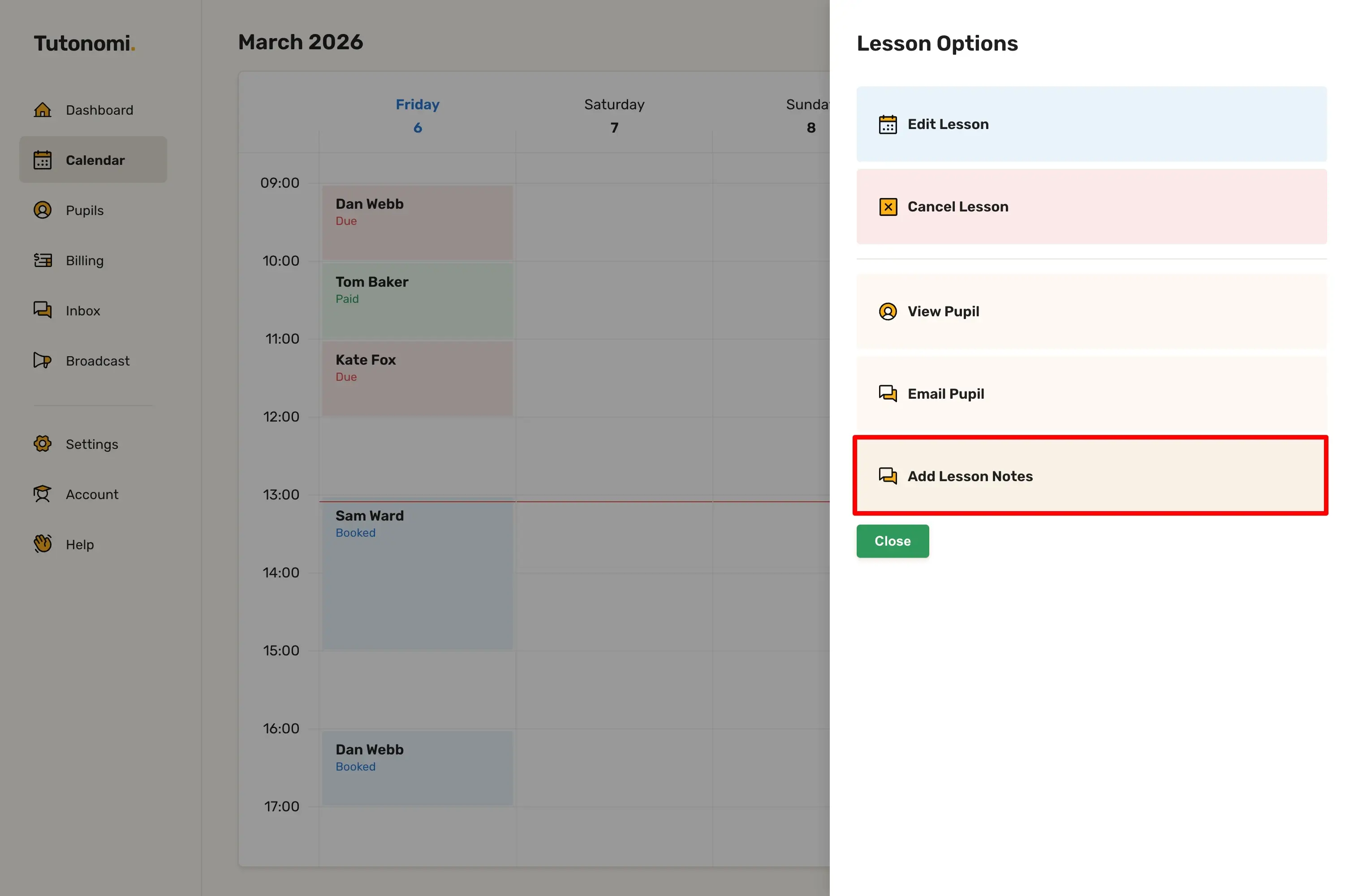
Step 1a: From the calendar
From your Calendar, click on the relevant lesson. In the Lesson Options panel, select Add Lesson Notes.
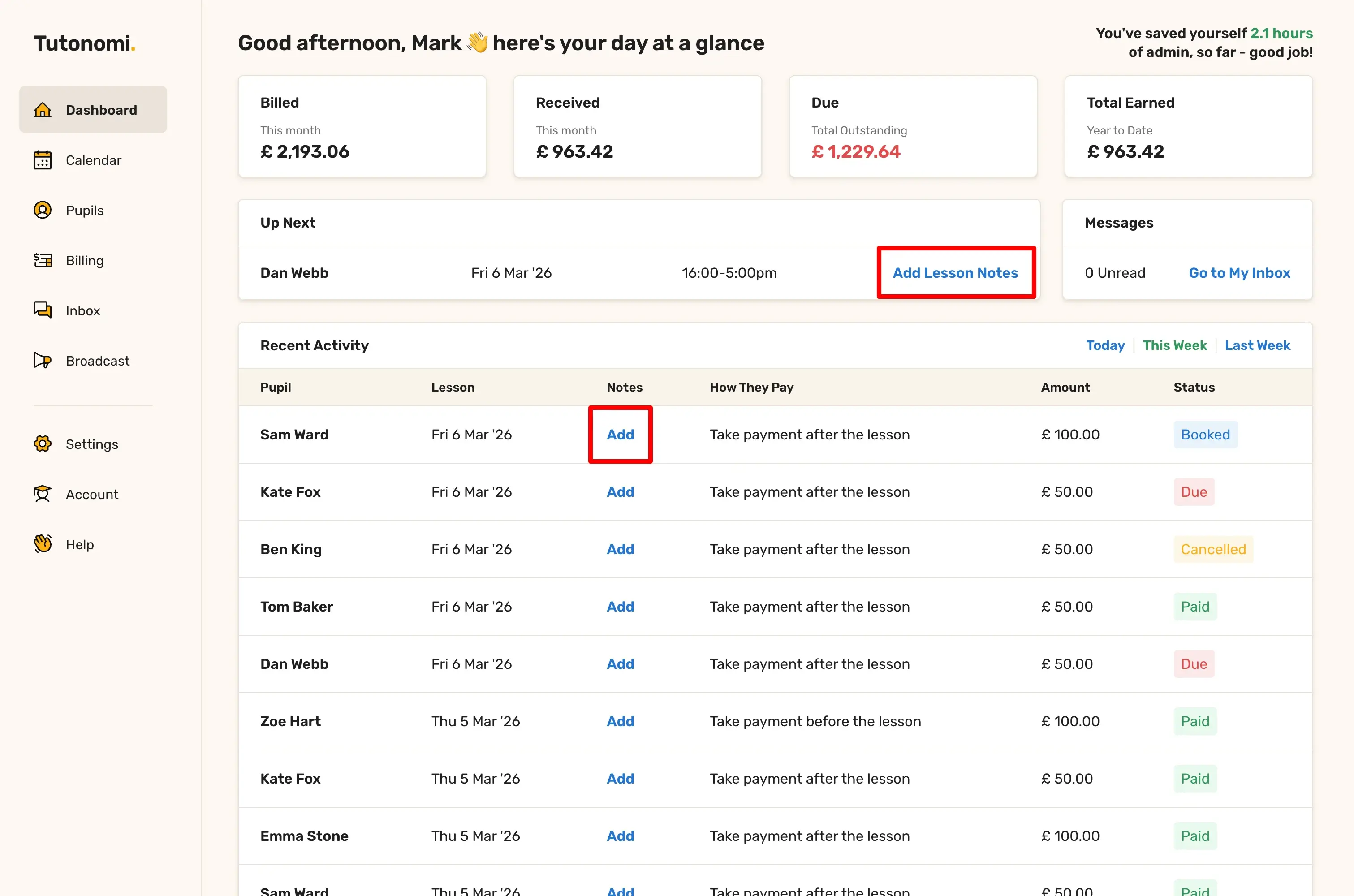
Step 1b: From the dashboard
You'll find links on the dashboard that will quickly enable you to add lessons notes to your pupils.
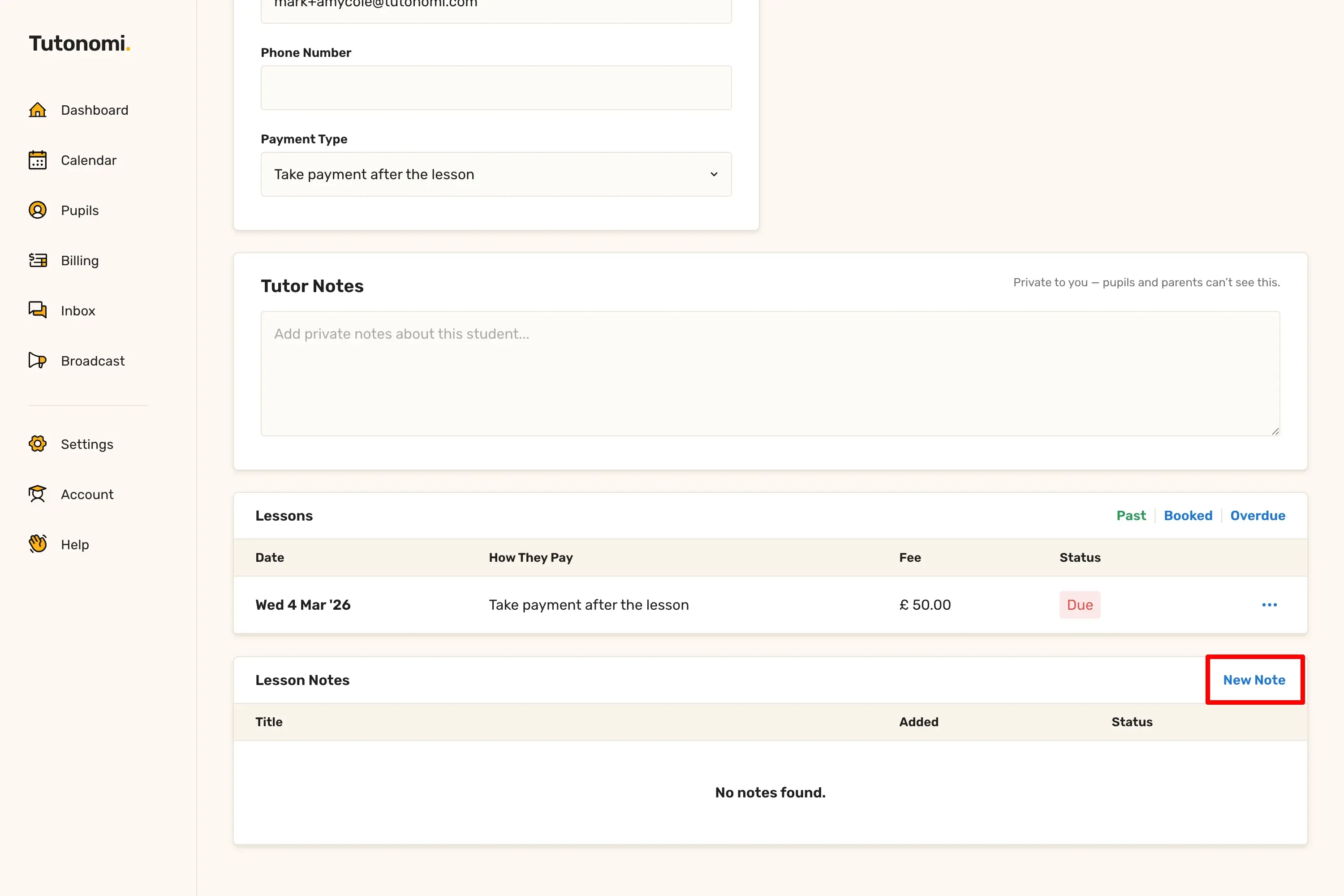
Step 1c: From the pupil profile
Finally, you can also add a note from the Pupil's Profile by clicking the New Note link at the top of the Lesson Notes table.
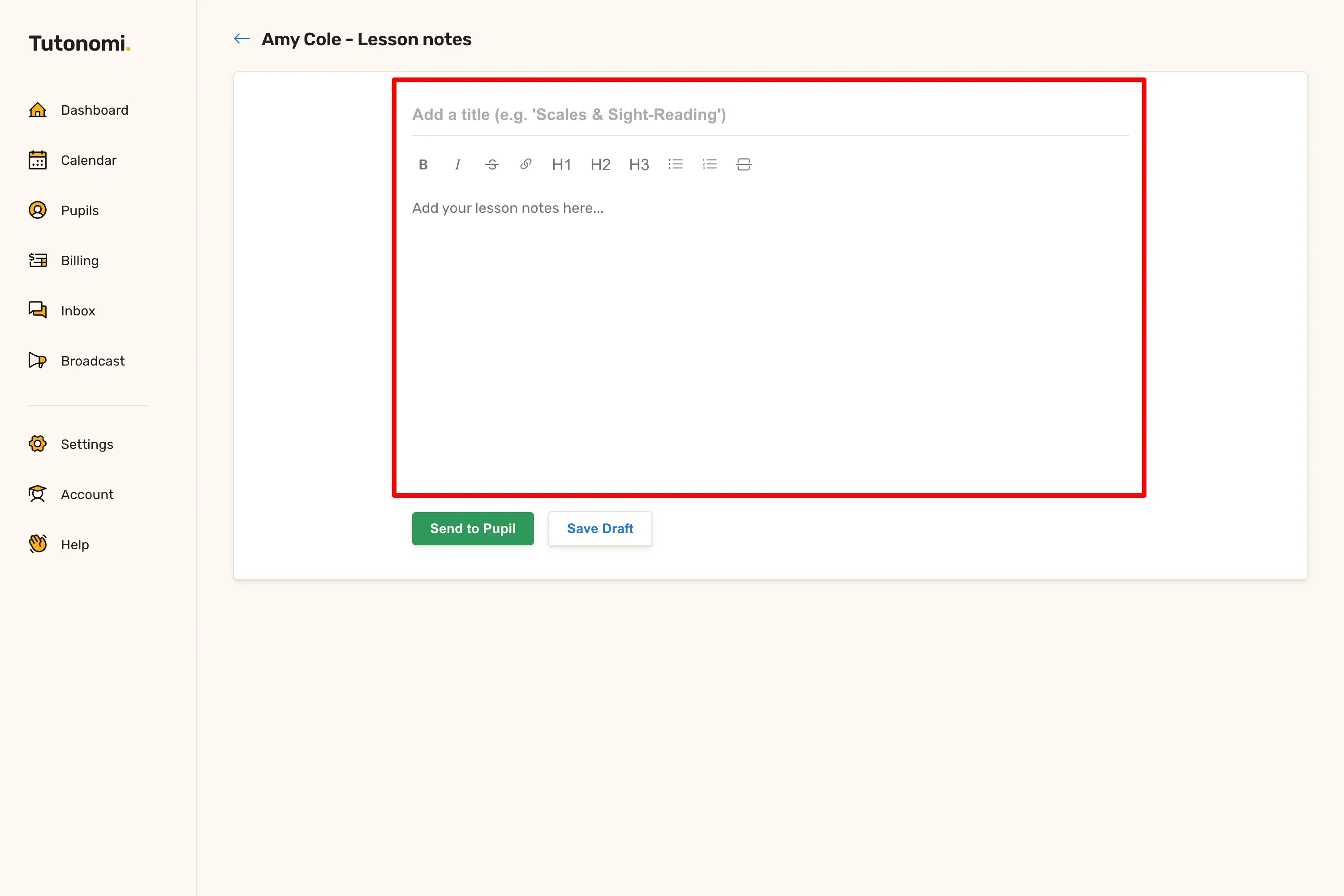
Step 2: Write your notes
Add an optional title and write your notes in the editor. You can use the formatting toolbar to structure your content.
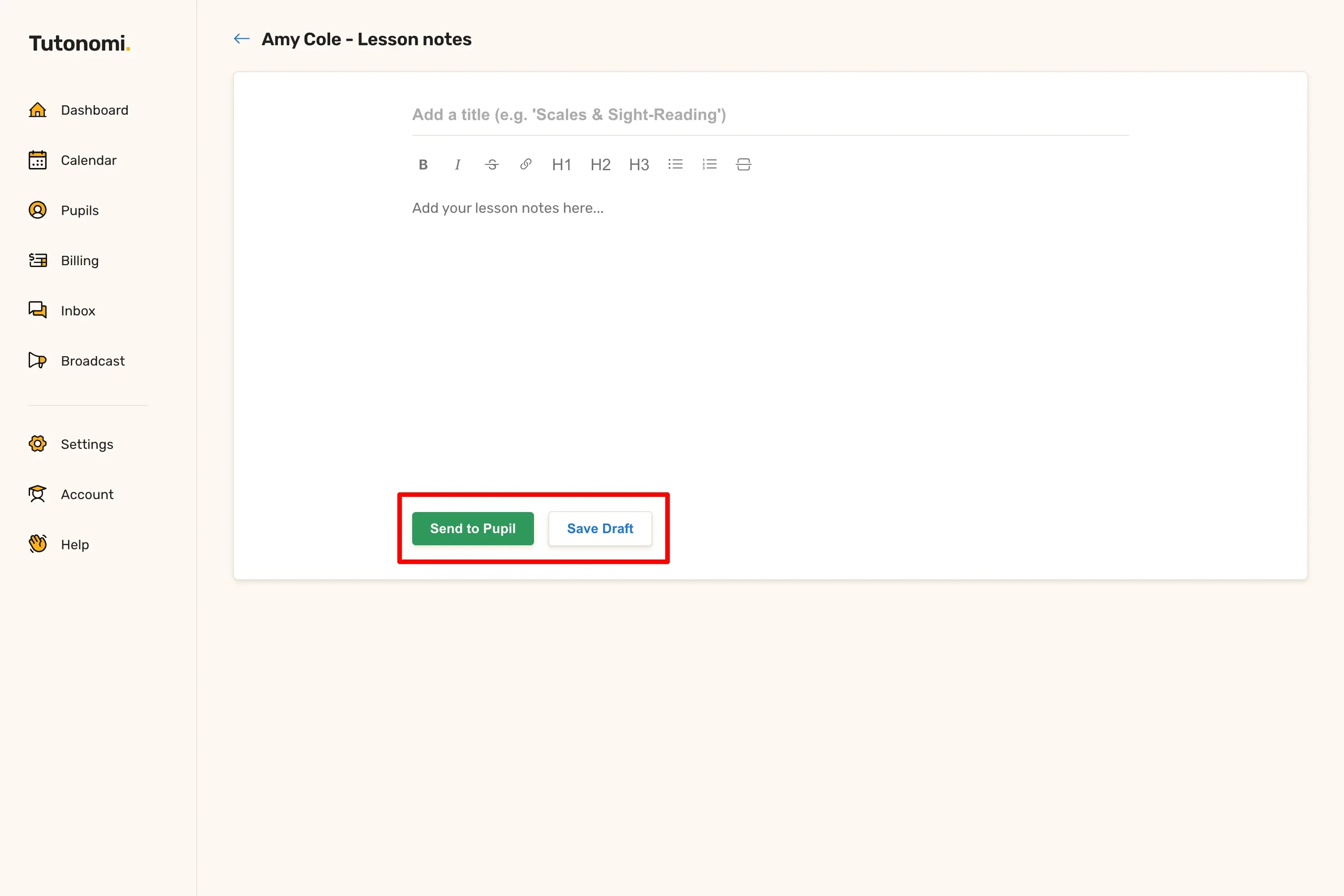
Step 3: Send or save
Click Send to Pupil to send the notes by email, or Save Draft to come back to them later.
Good to know
Notes are sent directly to the pupil and, if linked, their parent or guardian.
Using the title field makes notes easy to find later — something like "Scales & Sight-Reading" works well.
Saved drafts can be found from the pupil's profile.
Need a hand? 👋
If this hasn’t fully answered your question, we’re always here to help!
Send us a message and we’ll get back to you quickly — usually within an hour (9am-6pm UTC).
I simply love it
Saves me 5 hours a week
It’s free!
I have more family time now
My schedule is crystal clear
I spend more time earning (or relaxing!)
Now I get paid on time, every time
I highly recommend this app!